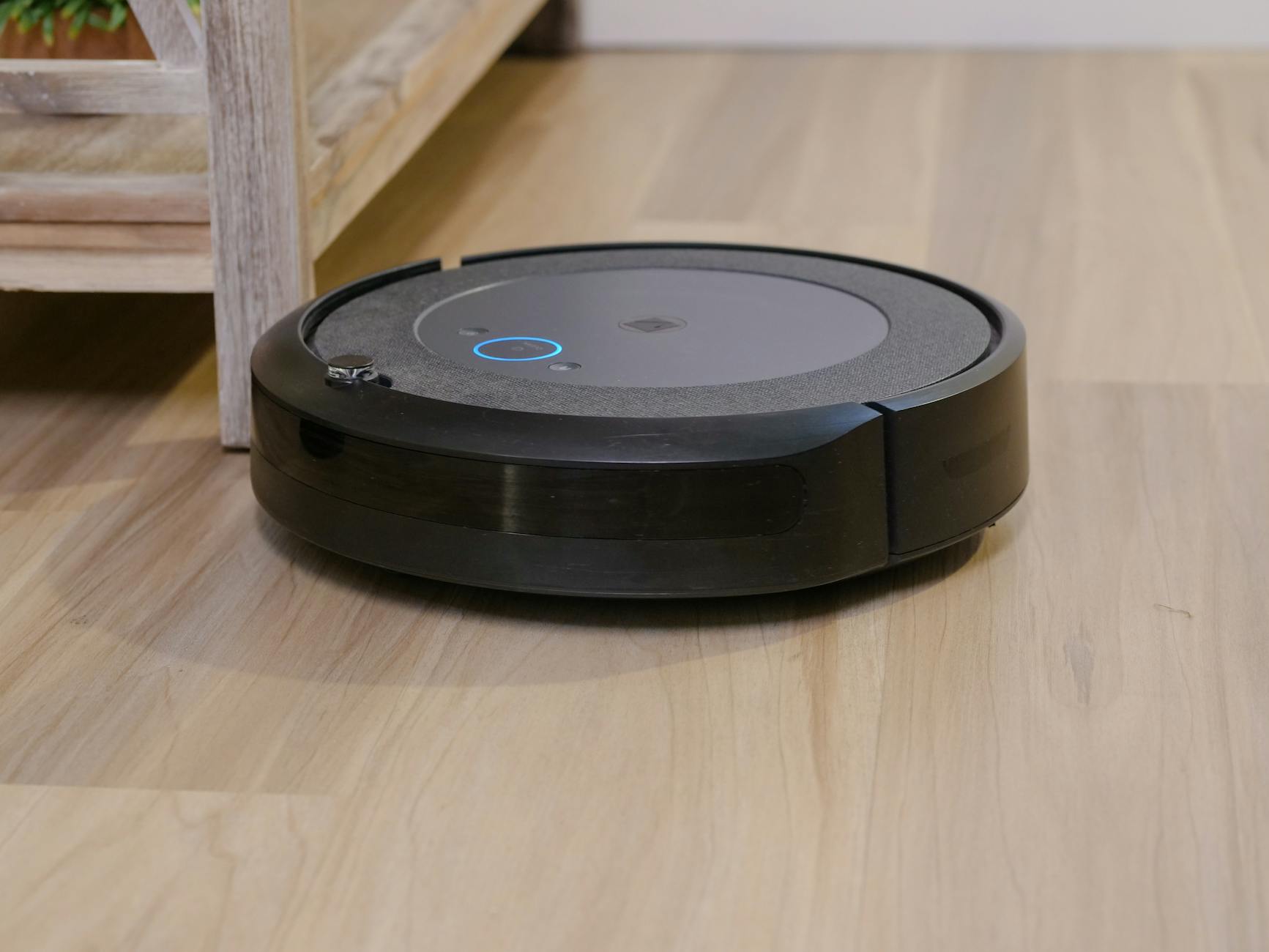
If you own a smart Roomba like the i7, j7, or s9, you probably rely on its precise mapping to keep your home clean with minimal effort. But what happens when you decide to move its charging base? Will your robot vacuum get confused? Do you need to remap your entire home?
The answer depends on your Roomba model, how far you move the base, and your home’s layout. In this guide, we’ll cover:
- How different Roomba models handle base relocation
- When remapping is necessary (and when it’s not)
- Step-by-step instructions for moving your base without issues
- Troubleshooting tips if your Roomba gets lost
- Expert tricks to maintain an accurate map
By the end, you’ll know exactly how to relocate your Roomba’s home base without disrupting its cleaning efficiency.
How Roomba Mapping Works (And Why Base Location Matters)
Not all Roombas navigate the same way. Some rely on random patterns, while others use advanced mapping. Here’s how different models handle navigation:
1. Non-Mapping Roombas (600, 800, e5 Series)
These budget-friendly models do not create maps of your home. Instead, they:
- Bump into obstacles to detect walls and furniture
- Use cliff sensors to avoid stairs
- Follow a random cleaning pattern
If you move the base: No remapping is needed since they don’t store a layout. However, they may take a few cleaning cycles to learn the new path back to the dock.
2. Smart Mapping Roombas (iSeries, jSeries, sSeries)
High-end models like the i7, j7, and s9 use:
- vSLAM (Visual Simultaneous Localization and Mapping) – A camera scans the room to build a map.
- Persistent Smart Maps – Saves your home’s layout in the iRobot app.
- Base Station as a Landmark – The charging dock helps the robot orient itself.
If you move the base: The Roomba may struggle to navigate unless you update its map.
When Moving the Base Requires Remapping
Not every base relocation means you must remap. Here’s when it’s necessary:
✅ Minor Adjustments (Few Feet Away)
- Example: Moving the base from one side of a couch to the other.
- Solution: The Roomba can usually adapt without remapping.
⚠️ Same Room, Different Wall
- Example: Relocating from the living room’s left wall to the right wall.
- Solution: The Roomba may need a “training run” to adjust.
❌ Major Move (Different Floor or Far Side of House)
- Example: Moving from the living room to the bedroom.
- Solution: Full remapping is required because the old map no longer applies.
Other Factors That May Force a Remap:
✔ Changed lighting conditions (dark vs. bright areas)
✔ New obstacles near the base (furniture blocking the dock)
✔ Different floor type (moving from hardwood to carpet)
Step-by-Step: How to Move Your Roomba Base Without Issues
Follow these steps to ensure a smooth transition:
Step 1: Choose the Right Location
- Clearance: Leave 18 inches on each side and 4 feet in front of the dock.
- Lighting: Avoid direct sunlight (can interfere with sensors).
- Floor Surface: Keep it on a hard, flat surface (not thick carpet).
Step 2: Update the Base Location in the App (For Smart Models)
- Open the iRobot HOME app.
- Select your robot.
- Go to Settings > Maps > Edit.
- Choose “Update Base Location” and confirm the new spot.
Step 3: Test the New Location
- Run a short cleaning job and observe:
- Does it return to the dock smoothly?
- Does it follow efficient paths?
- If it struggles, proceed to Step 4.
Step 4: When to Remap (Full Reset)
If navigation issues persist:
- Go to Settings > Maps > Delete Map.
- Perform a new training run (let it explore and rebuild the map).
- Label rooms and no-go zones again.
Model-Specific Tips for Moving the Base
Roomba i7/i7+
- Highly sensitive to base moves.
- Best practice: Update the base location in the app immediately.
Roomba j7/j7+
- More adaptable than the i7.
- Automatic adjustments: Sometimes updates the map itself.
Roomba s9/s9+
- Uses floor tracking sensors + camera.
- More forgiving of base relocations.
Roomba 600/800/e5 Series
- No mapping = No remapping needed.
- May take 2-3 cleaning cycles to learn the new path.
Troubleshooting: What If My Roomba Gets Lost?
Problem 1: Roomba Can’t Find the Dock
Solutions:
✔ Ensure the base is powered (green light on).
✔ Clean the charging contacts (dirt can block connection).
✔ Remove obstacles near the dock.
Problem 2: Roomba Navigates Poorly After Moving Base
Solutions:
✔ Check lighting (too dark or too bright?).
✔ Run a mapping run to refresh its memory.
✔ Reset the map if problems persist.
Problem 3: App Shows Wrong Base Location
Solutions:
✔ Manually update the base position in the app.
✔ Delete and rebuild the map if the error continues.
Pro Tips for Maintaining a Reliable Map
- Avoid Frequent Base Moves – The more consistent the location, the better.
- Use Multiple Maps for Multi-Floor Homes – Save different maps for each floor.
- Keep the Base in an Open Area – Prevents docking failures.
- Regularly Update the App – Ensures optimal performance.
Final Verdict: Do You Need to Remap?
| Situation | Remap Needed? |
|---|---|
| Small adjustment (few feet) | ❌ No |
| Same room, different wall | ⚠️ Maybe (training run) |
| Different floor or far move | ✅ Yes |
| Non-mapping Roomba (600/e5) | ❌ Never |
Conclusion
Moving your Roomba’s base doesn’t have to be a headache. For basic models, you can relocate freely. For smart Roombas, small moves may not require remapping, but major relocations will.
Key Takeaways:
✔ Update the base location in the app for smart models.
✔ Run a test clean to check navigation.
✔ Remap only if necessary (if the robot gets lost).
By following these steps, your Roomba will keep cleaning efficiently—no matter where you place its home!
Have you moved your Roomba’s base before? Share your experience in the comments! 🚀