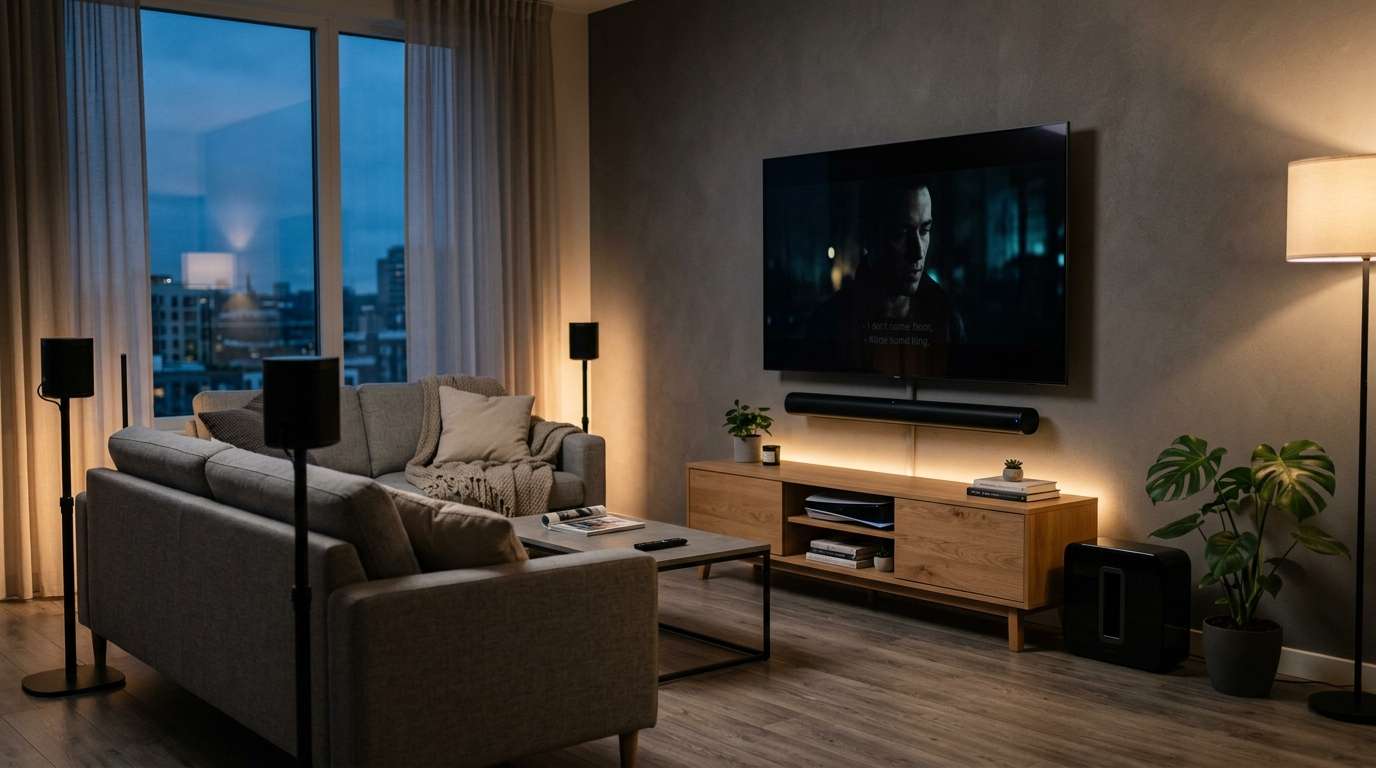
There’s a reason so many home theater setups still lean on the JBL Bar 9.1 True Wireless Surround with Dolby Atmos years after its release. It squeezed genuine surround sound and height-channel effects into a system that doesn’t demand a single speaker wire running across your living room floor. That convenience comes at a cost, though: wireless rear channels, a wireless subwoofer, Atmos processing, and a Wi-Fi connection all have to stay in sync at once, which gives the system more moving parts than a basic two-speaker soundbar.
So when something glitches, whether it’s a rear speaker that won’t reconnect or audio that vanishes mid-movie, it’s tempting to assume the unit is failing. In practice, most complaints trace back to a small, predictable list of causes: an interrupted wireless handshake, outdated firmware, a power sequencing issue, or a source device quietly sending signal somewhere the bar isn’t listening. None of these require a technician, and most take less time to fix than it took to notice the problem.
This guide walks through the issues owners run into most often, explains why each fix actually works, and helps you figure out when a problem is a quick tweak versus a sign it’s time to consider replacing the unit.
Try the Full Reset First
Before diagnosing anything specific, rule out the most common culprit behind erratic soundbar behavior: a temporary glitch in the unit’s memory. Like most connected devices, the Bar 9.1 keeps a running state in the background, tracking which speakers are paired, what input is active, and what settings are applied. That state occasionally gets confused, especially after a power outage, an HDMI handshake failure, or a firmware update that didn’t fully complete.
A full reset clears that slate without erasing your actual settings. Unplug the main soundbar and the subwoofer from the wall, and leave them disconnected for a full minute so any residual charge dissipates. Plug the main bar back in first and let it finish its startup sequence before reconnecting the subwoofer; the rear speakers should rejoin automatically once the main unit is back online, since they’re designed to search for that signal the moment they detect power.
If this alone doesn’t resolve things, you’ve at least eliminated the simplest explanation, which makes the next steps easier to diagnose.
When the Wireless Surround Speakers Won’t Stay Connected
This is by far the most common complaint among Bar 9.1 owners, and it almost always comes down to interference or an incomplete pairing rather than a hardware defect. The rear speakers and the main bar communicate over a proprietary wireless protocol that shares a crowded slice of spectrum with your Wi-Fi router, Bluetooth accessories, and even some baby monitors or wireless security cameras. When too many devices broadcast in the same space, the connection between the bar and its rear speakers can weaken or drop entirely, particularly in homes with several smart devices clustered in one room.
Start by re-pairing manually rather than assuming the system will recover on its own. Each rear speaker has a pairing button on the back; press and hold it until the indicator light starts flashing, meaning it’s searching for the main unit. Put the soundbar into pairing mode too, using the top panel button or the remote, and pair one speaker at a time. Pairing both simultaneously is a common mistake, since the bar can lock onto the first signal it detects and ignore the second, leaving one rear channel working and the other seemingly dead.
Distance and obstruction matter more than people expect, too. Speakers tucked behind thick furniture, inside enclosed cabinets, or positioned more than roughly 30 feet from the main bar are the most frequent source of dropouts. If a speaker keeps disconnecting, move it closer to the main unit, confirm the connection holds, then walk it back gradually to find the usable range in your room. And if your router sits close to the soundbar, relocate it a few feet or switch it to the 5GHz band, since that single change resolves a surprising number of “random” dropouts.
No Sound at All, or Sound Only From the Subwoofer
When the bar powers on normally but nothing plays, or the only thing you’re hearing is low-end rumble from the subwoofer, the cause is almost always input selection or cable routing rather than a failed component. Start by confirming the soundbar is set to the input you think it’s on. The Bar 9.1 cycles through HDMI ARC and eARC, optical, Bluetooth, and Wi-Fi, and it’s easy to leave it parked on the wrong one after switching between a console, a streaming device, or a Bluetooth connection from your phone. Step through the inputs using the source button while something plays, and listen for the moment sound returns.
If you’re connecting through HDMI, confirm you’re using your TV’s ARC or eARC port rather than a standard HDMI input, since only that port carries audio back to the soundbar. Also check your TV’s audio output setting, since many televisions quietly default back to internal speakers after a system update, cutting the soundbar out of the loop even though everything looks correctly connected.
If you’re only hearing the subwoofer, that’s typically a channel balance issue. The subwoofer level adjusts independently through the JBL One app, so check whether the main bar’s channel has been muted or turned down separately, which can happen accidentally if someone else in the household has been adjusting settings.
Fixing a Subwoofer That Won’t Pair or Keeps Cutting Out
The wireless subwoofer pairs to the main unit independently from the rear speakers, so it can develop its own connection issues even when the rest of the system works fine. Check its pairing indicator light: a blinking light means it’s still searching for the main bar, while a solid light confirms a connection. If it’s stuck blinking, power cycle it by unplugging it for about 20 seconds, then reconnecting it close to the main unit before moving it back to its permanent spot.
Placement matters more than most people assume. Subwoofers are less directional than the rear speakers, which is why people tuck them into corners or media cabinets without a second thought. But that placement can weaken the wireless signal enough to cause intermittent cutouts, especially near large metal objects like a furnace or steel-framed furniture, in ways that aren’t obvious until you move the unit and the problem disappears.
Why the Remote Stops Responding
If your physical remote has gone unresponsive while the JBL One app still controls the bar without issue, the remote itself, not the soundbar, is almost certainly the problem. Replace the batteries even if they seem to have charge left, since a partially drained battery often causes intermittent failures that are harder to diagnose than a remote that simply won’t turn on. Also check that nothing is blocking the front of the soundbar where the infrared receiver sits; grille covers, decorative fabric, or a low-set TV stand shelf can all interrupt the line of sight the remote needs, even from a few feet away.
Dealing With Firmware Updates That Fail or Get Stuck
Firmware problems tend to show up as a progress bar that stalls partway through, a repeated failure message, or features like Atmos height virtualization behaving inconsistently after an update. These issues are common largely because updates depend on a stable connection for the entire process.
Update through the JBL One app rather than relying on background automatic updates, since it gives you a visible progress indicator and a clearer failure message if something interrupts the process. Keep the soundbar on a stable Wi-Fi network throughout, ideally on the 5GHz band, and avoid heavy network activity elsewhere during the update. If it keeps failing at the same percentage, power cycle the system, confirm the app shows it as connected, and restart the update from scratch rather than resuming a partial download.
Solving Audio and Video Sync Problems
Lip sync drift, where audio lags slightly behind the picture, is common enough across nearly all HDMI ARC and eARC soundbars that it’s worth checking before assuming your unit has a deeper problem. It happens because audio and video are processed through slightly different pathways, and even a small delay becomes noticeable during dialogue.
Most TVs and the JBL One app include an audio delay setting, adjustable in small increments. Adjust it gradually while watching dialogue-heavy content, since mismatches are easier to notice in conversation than in fast action or music. If the drift only shows up with one streaming app, the problem likely originates there rather than with the soundbar; testing the same content through a different source, like a Blu-ray player, usually confirms it.
Considering a Factory Reset
If you’ve worked through the sections above and the system is still misbehaving, a factory reset clears out corrupted pairing data or conflicting settings that a standard power cycle won’t touch. The exact button combination and hold time can vary by firmware revision, so check the quick start guide that came with your system rather than relying on memory. Once the reset completes, you’ll need to re-pair the rear speakers and subwoofer from scratch and reconnect the bar to Wi-Fi through the JBL One app, essentially setting the system up as if it were brand new.
When Troubleshooting Isn’t Enough: Should You Replace the Bar 9.1?
For most owners, the fixes above resolve the issue entirely, and a Bar 9.1 with a fresh pairing and updated firmware performs the same as it did on day one. Still, a couple of situations make replacement more sensible than continued troubleshooting: a main unit that won’t power on at all, even after trying a different outlet and confirming the power cable isn’t damaged, points to internal hardware failure rather than a software issue, and it’s worth checking your warranty status before investing more time. Likewise, if a full factory reset can’t get the rear speakers or subwoofer to hold a pairing no matter how close they sit to the main bar, that can indicate a failing wireless transmitter, which no settings change can fix.
For everyone else, intermittent dropouts, occasional sync drift, and stubborn firmware updates are almost always solvable through the steps above, and replacing a system that just needs a clean re-pair rarely justifies the cost.
Final Thoughts
The vast majority of Bar 9.1 issues come down to wireless interference, an unclear input selection, or firmware that didn’t fully update, not a failing component. That’s good news if you’re troubleshooting rather than shopping for a replacement, since nearly all of it is fixable without tools or technical expertise.
Work through the fixes in order: start with a full power cycle, check pairing and speaker placement, rule out input and cable issues, then look at firmware if everything else checks out. If you’ve done all of that, including a full factory reset, and the system still isn’t performing the way it should, that’s the point where warranty support becomes the more efficient path. For nearly everyone else, a few minutes with the steps above should have your surround sound back to normal.