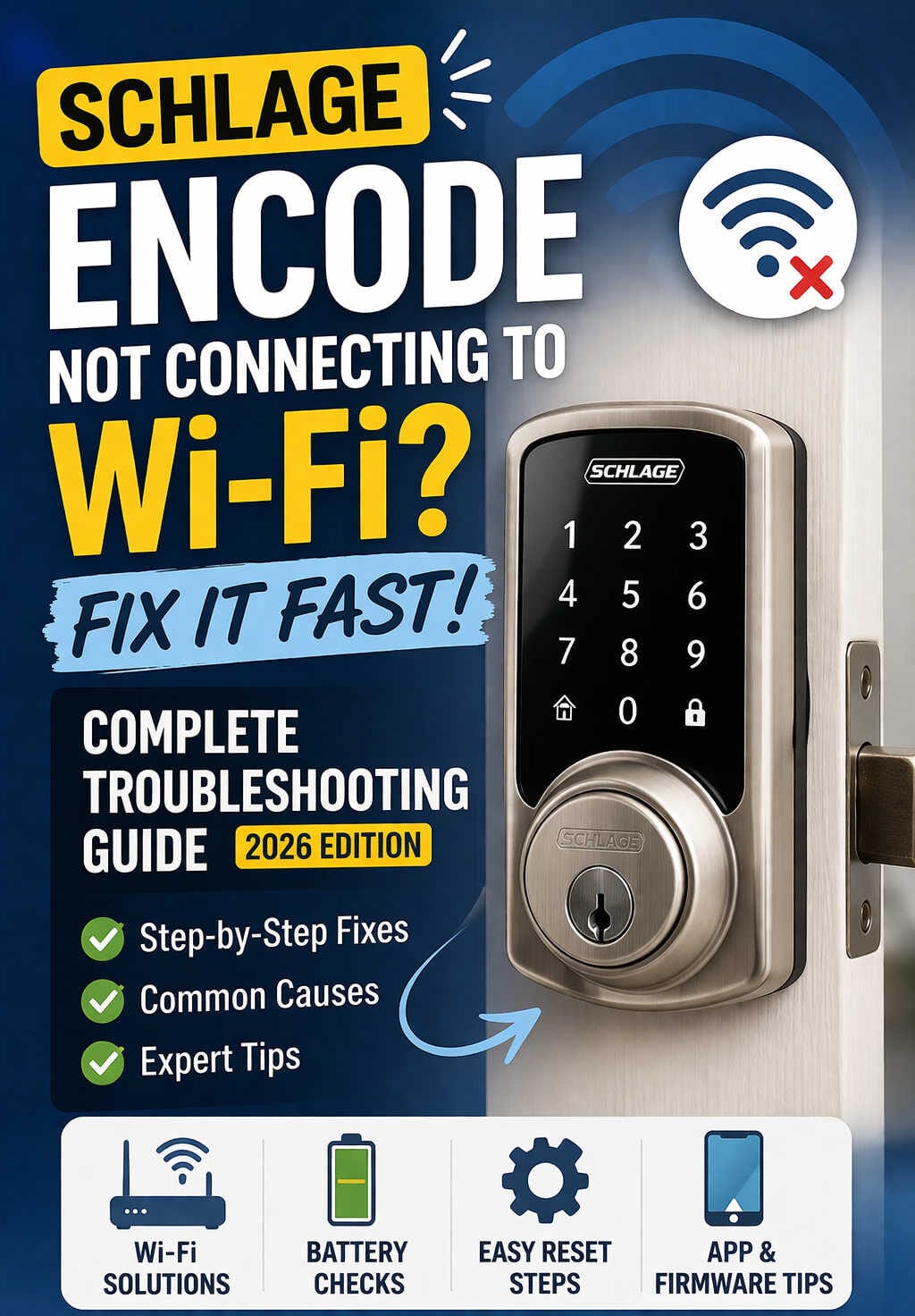
Smart locks have become a cornerstone of modern home security, offering convenience, remote access, and seamless integration with smart home ecosystems. Among the most popular options is the Schlage Encode Smart WiFi Deadbolt, known for its built-in Wi-Fi capability and reliable performance.
However, even well-designed devices can run into connectivity issues. One of the most common complaints users face is the Schlage Encode not connecting to Wi-Fi. If you’re dealing with this problem, you’re not alone—and more importantly, it’s usually fixable.
This guide takes a deep dive into why your Schlage Encode won’t connect to Wi-Fi, along with step-by-step solutions, expert tips, and preventative measures to keep your lock running smoothly.
Understanding the Problem: Why Wi-Fi Connectivity Matters
Before jumping into troubleshooting, it’s helpful to understand what’s at stake.
When your Schlage Encode loses Wi-Fi connection, you lose access to:
- Remote locking and unlocking
- Mobile app controls
- Real-time activity alerts
- Guest access code management
- Smart home integrations
In short, your smart lock becomes a standard keypad lock—still functional, but stripped of its “smart” features.
Common Reasons Your Schlage Encode Isn’t Connecting to Wi-Fi
Connectivity issues can stem from multiple factors. Let’s break down the most frequent causes in a way that’s easy to diagnose.
Weak Wi-Fi Signal at the Door
Your front door is often the farthest point from your router. Walls, metal doors, and distance can significantly weaken signal strength.
If your lock struggles to maintain a stable connection, poor signal is usually the main culprit.
Using the Wrong Wi-Fi Frequency (2.4GHz vs 5GHz)
This is one of the biggest issues users encounter.
The Schlage Encode only works with 2.4GHz Wi-Fi networks. Many modern routers automatically switch devices between 2.4GHz and 5GHz bands, which can cause connection failures during setup.
Router Settings Blocking the Connection
Advanced router configurations can interfere with smart devices. These include:
- MAC address filtering
- Firewall restrictions
- Band steering (automatic switching between frequencies)
- AP isolation or guest network limitations
Even if your Wi-Fi works fine for phones and laptops, these settings can silently block your lock.
Incorrect Wi-Fi Password or Network Selection
Sometimes the issue is simple:
- Typing errors
- Case-sensitive passwords
- Connecting to the wrong network
Even a small mistake will prevent the lock from pairing.
Low Battery Power
Smart locks rely on battery power not just for locking mechanisms, but also for Wi-Fi communication.
If the batteries are weak, connectivity can become unstable or fail entirely.
App or Firmware Issues
Outdated software can cause:
- Pairing failures
- Sync issues
- Connectivity drops
Keeping both the mobile app and lock firmware updated is essential.
Temporary Glitches
Like any smart device, the Schlage Encode can experience occasional bugs:
- Router hiccups
- App crashes
- Network interruptions
These are often resolved with simple resets.
Step-by-Step Troubleshooting Guide
Now let’s move into practical solutions. Follow these steps in order for the best results.
Step 1: Confirm Your Wi-Fi Network Is Working
Start by checking your network:
- Connect your phone to Wi-Fi
- Turn off mobile data
- Test internet browsing
If your phone struggles to connect, the issue lies with your router—not your lock.
Step 2: Switch to a 2.4GHz Network
This step alone resolves a large percentage of cases.
What to do:
- Log into your router settings
- Enable a separate 2.4GHz network
- Give it a unique name (SSID)
- Connect your phone to that network before setup
Avoid using combined SSIDs that automatically switch between bands.
Step 3: Move Your Router or Improve Signal Strength
If signal strength is weak, try:
- Moving the router closer to your door
- Elevating the router for better coverage
- Using a Wi-Fi extender
A strong and stable signal is critical for consistent lock performance.
Step 4: Restart Your Router
Power cycling your router can fix hidden issues.
How to do it:
- Unplug the router
- Wait 30 seconds
- Plug it back in
- Wait for full reboot
Then try reconnecting your lock.
Step 5: Double-Check Your Wi-Fi Credentials
Carefully re-enter your password:
- Watch for uppercase/lowercase differences
- Avoid extra spaces
- Ensure you’re selecting the correct network
If needed, reset your Wi-Fi password to something simple during setup.
Step 6: Disable Router Restrictions (Temporarily)
To rule out compatibility issues:
- Turn off MAC filtering
- Disable firewall restrictions
- Pause advanced security settings
Once the lock connects successfully, you can re-enable these features.
Step 7: Replace the Batteries
Use fresh, high-quality alkaline batteries.
Avoid:
- Mixing old and new batteries
- Using rechargeable batteries (they can be unreliable in some cases)
Strong battery power ensures stable Wi-Fi communication.
Step 8: Reset the Lock
If all else fails, perform a factory reset.
This clears:
- Wi-Fi settings
- User codes
- App connections
After resetting, set up the lock as if it were new.
Step 9: Update the App and Firmware
Make sure you’re using the latest version of the Schlage Home app.
Also check for firmware updates within the app settings. Updates often fix bugs and improve connectivity.
Step 10: Reinstall the Lock in the App
Sometimes the issue is app-related.
- Remove the lock from your account
- Reinstall the app if necessary
- Add the lock again from scratch
This refreshes the connection between your device and the lock.
Step 11: Use a Guest Network (Advanced Tip)
If your router has complex settings, create a simple guest network:
- Set it to 2.4GHz only
- Use basic security settings
- Connect your lock to this network
This often bypasses compatibility issues.
Recommended Products to Improve Connectivity
If you’re still experiencing issues, upgrading your network setup can make a big difference.
Wi-Fi Range Extenders
Range extenders help boost signal strength in areas far from your router—like your front door.
Mesh Wi-Fi Systems
Mesh systems provide consistent coverage throughout your home, eliminating dead zones.
Pro Tips to Prevent Future Connectivity Issues
Once your lock is connected, these tips will help maintain stability.
Keep Your Network Simple
Avoid overly complex configurations unless necessary.
Maintain Strong Signal Coverage
Ensure your lock always receives a strong Wi-Fi signal.
Avoid Frequent Network Changes
Changing your SSID or password often can disconnect your lock.
Regularly Update Software
Keep both your app and firmware up to date.
Monitor Battery Levels
Replace batteries before they get too low.
Frequently Asked Questions (FAQs)
Why won’t my Schlage Encode find my Wi-Fi network?
Most likely, your router is using 5GHz only. The lock requires a 2.4GHz network to detect and connect.
Can I connect Schlage Encode to 5GHz Wi-Fi?
No. The lock is designed specifically for 2.4GHz networks.
How far can the lock be from the router?
Ideally within 20–30 feet, depending on walls and interference. Beyond that, a range extender is recommended.
Does low battery affect Wi-Fi connectivity?
Yes. Weak batteries can cause intermittent or failed connections.
Why does my lock keep going offline?
Common reasons include:
- Weak signal
- Router instability
- Network changes
- Firmware issues
Do I need a hub for Schlage Encode?
No. The Schlage Encode has built-in Wi-Fi, so it connects directly to your network.
How do I reconnect my lock to Wi-Fi?
You can reconnect through the Schlage Home app or perform a factory reset if necessary.
Final Thoughts
Wi-Fi connectivity issues with the Schlage Encode Smart WiFi Deadbolt can be frustrating, but they are rarely permanent.
In most cases, the problem comes down to:
- Incorrect Wi-Fi frequency
- Weak signal strength
- Router configuration conflicts
By following the troubleshooting steps in this guide, you can quickly identify and resolve the issue.
Smart locks are meant to make life easier—and once your connection is stable, you’ll be able to enjoy the full convenience and security your device offers.